Tools
Plugins
The PLUGINS tab in the side workspace is an extension point. A plugin adds its own view there without a fork and without touching the rest of the app, settings of its own, and, when you allow it, a tab of its own. Four ship with Corvus, two more are a download away, and a folder dropped into your plugin folder adds your own.
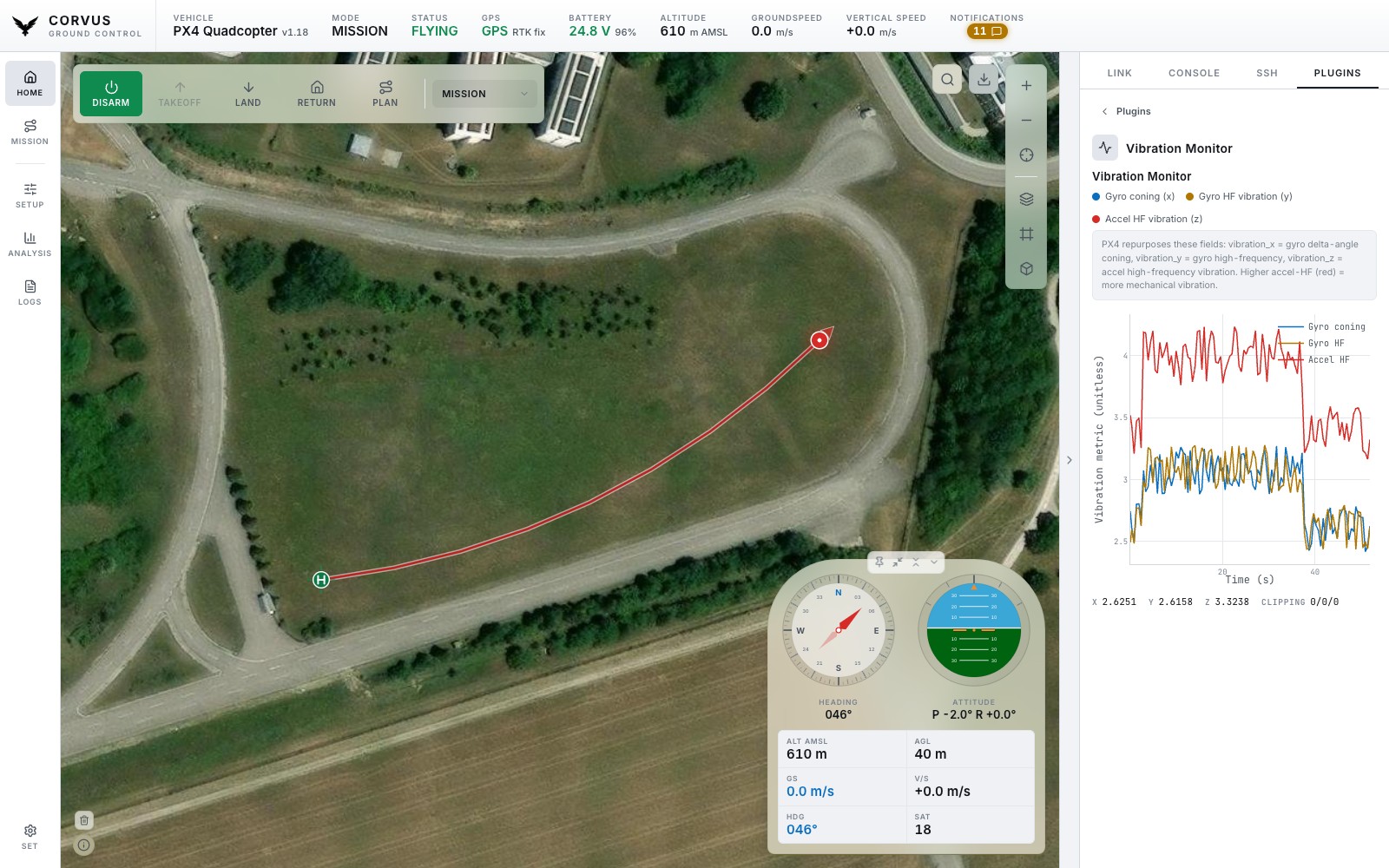
Vibration Monitor
A live graph of gyro coning, gyro high frequency and accelerometer high
frequency vibration, with the cumulative clipping counters beside it. While
it is open it asks the autopilot to send VIBRATION more often,
and puts the default rate back when you close it.
SSH Launcher
A shelf of buttons for the programs you start before a flight. Each button carries its own saved SSH connection, folder and command, so the mission script, the video pipeline and the log recorder are three presses rather than three trips to a terminal. Add, rename, edit and remove buttons in the plugin itself; they are saved and there again at the next launch.
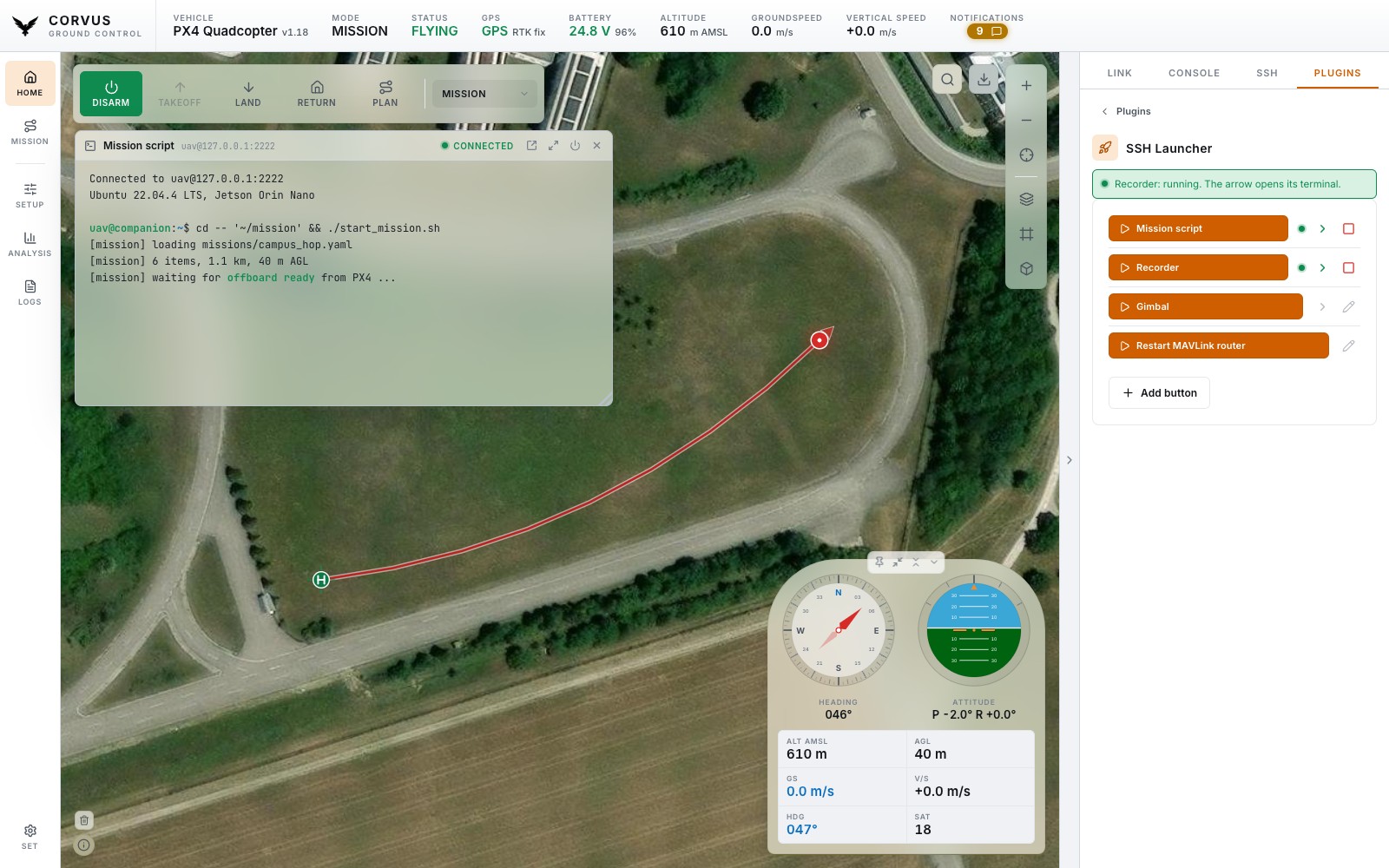
How a button runs its program
- In its own SSH session. Pressing the button again runs the program again in that same terminal: one run under the last, in one scrollback, with nothing thrown away in between. (It is a real shell: if the last program is still running in the foreground, what you send goes to it, just as if you had typed it. Press Ctrl+C first, or let it finish.)
- The arrow beside a button opens that session's terminal, a window you can move, resize, maximise and put away. Only the arrow opens it: pressing the button starts the program without throwing a window at you, which matters when four of them go up on the pad. Pressed before the button, the arrow opens the terminal on a plain shell, and the button then runs the program in it.
- Closing the window with × leaves the program running, and the arrow brings the window back with its scrollback intact.
- A green dot marks buttons that have something running. On those rows the pencil becomes a red stop button: it sends Ctrl+C, gives the program a second to finish, then closes the session, which ends the program and the connection. Stop a button before editing it.
- The grip at the left of each row appears once the pencil at the bottom of the card is switched on. Drag it up or down to move the button, or focus it and press ↑ or ↓. The new order is saved at once.
- The colour of a button is set in its editor: the first chip is the default, which follows the theme, then a few preset colours, and the last chip opens a picker for any other. The label switches between white and black so it stays readable.
Turn Run in a terminal off for a program that has to outlive
Corvus itself. It is then started with nohup and detached, with
nothing to watch and nothing to stop from here.
Connections
A button does not need a connection set up beforehand. The connection list in
its editor ends with New connection…, which asks for host,
user, password and key file right there, so a shelf can be built on the pad
for a companion computer Corvus has never seen. What you type is saved as an
ordinary SSH connection (it appears in the SSH tab, ready for the next button,
editable and removable), named user@host unless you name it.
The plugin never holds a password. A button names a saved SSH connection, and the backend takes the credentials from there.
Schwalby
A shelf of one press buttons like the SSH Launcher's, for programs on the ground station as well as on the aircraft. When you create a button, the Local / SSH switch at the top of its settings decides where it runs:
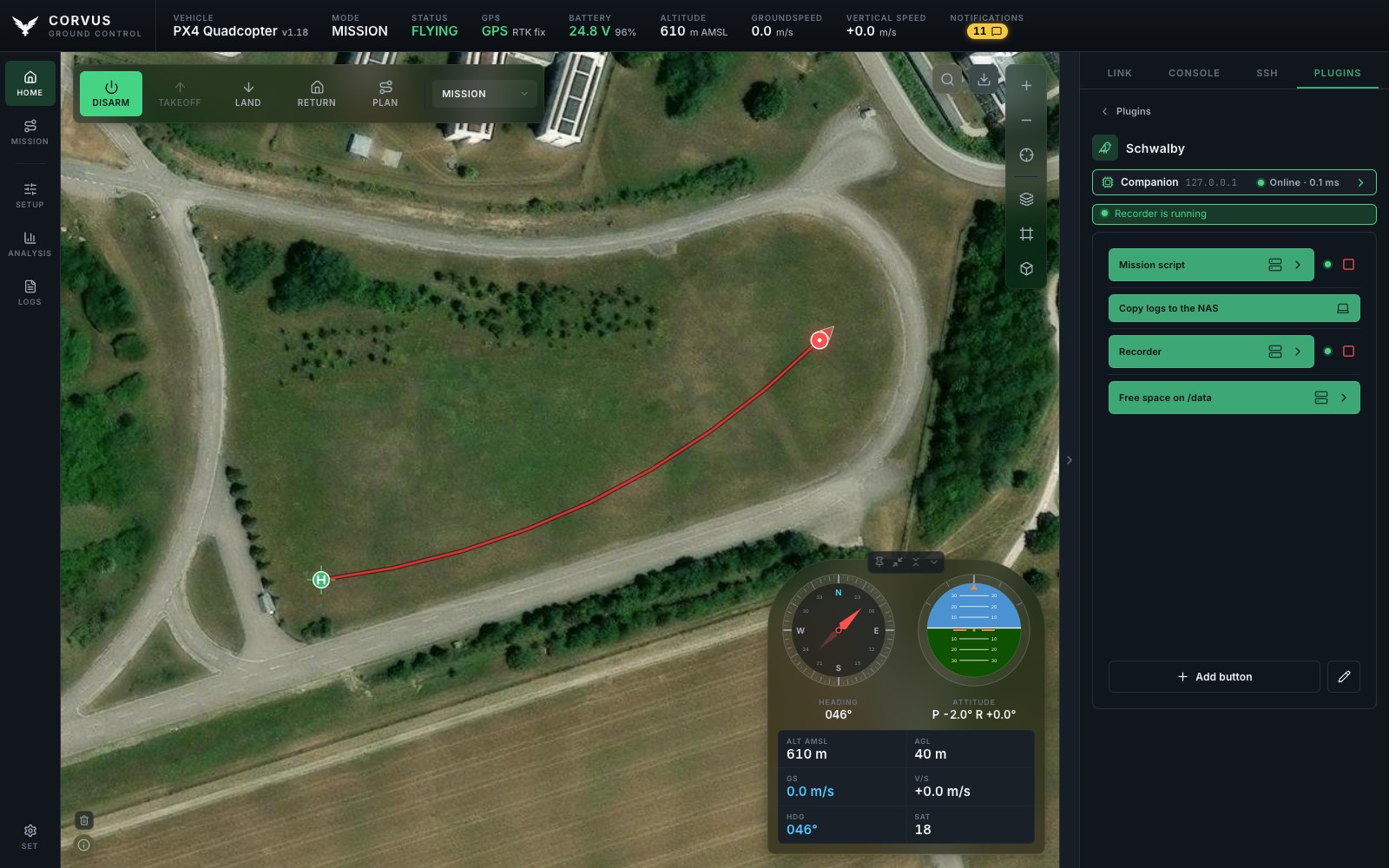
- Local
- Runs the command on this computer, as you, in your own login shell. In a terminal it gets a window of its own like any other (arrow, pin, disconnect, Ctrl+C, and the stop button on its row); in the background it starts without one. Either way it is stopped when Corvus closes, so nothing is left running after you shut down. Only this computer can start anything locally, even when Corvus is reachable from the network. On Windows a local terminal is not available and the switch says so; local background buttons work there too.
- SSH
- Runs it on a saved SSH connection, exactly as an SSH Launcher button does, including New connection… and the
nohupbackground mode.
Each row says where it runs. Moving a running button to the other side (or to another connection) asks first and closes its old session, so the next press can never land on the wrong machine. Schwalby and the SSH Launcher are separate plugins with their own buttons and settings; neither touches the other's.
Schwalby can have a tab of its own. Switch on Own tab in its settings (the gear beside it in Settings, Plugins) and its shelf is the SCHWALBY tab, one press from anywhere, instead of a card under PLUGINS.
Map Entities
A tactical layer for the Home map. You place things by hand, at an exact coordinate, and the plugin watches the aircraft against them: trees and gates first, but also people, vehicles, an explosion, a radar or a camera with the area it covers. It is laid out like the Mission planner's side panel: a row of figures, the list of what is on the map, and the editor for the one you picked.
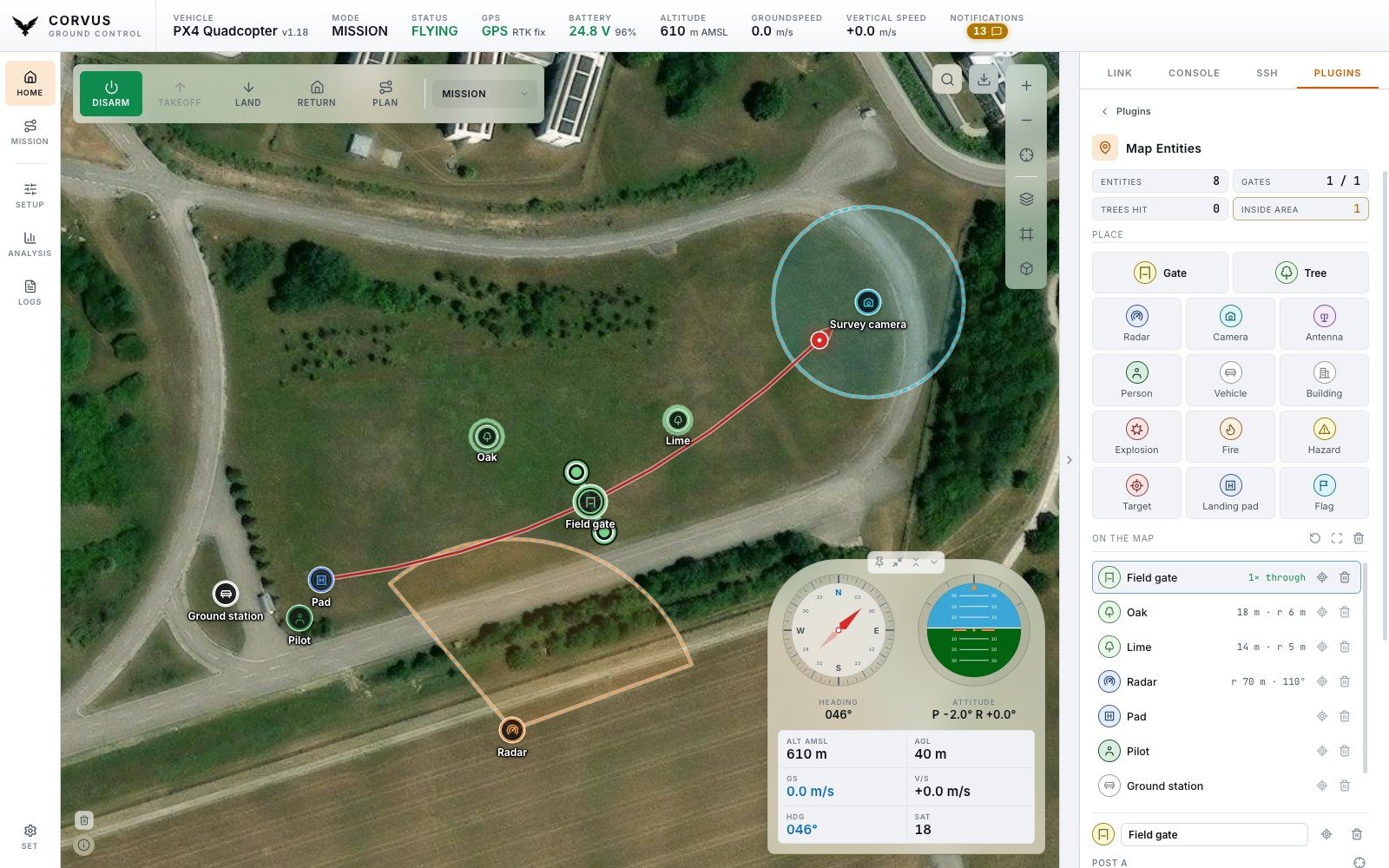
Placing
Pick a kind under Place, then click the map. It keeps going,
so a row of trees is a row of clicks. Esc, a right click or
Done stops. A gate takes two clicks, one for each post.
Whatever you place is selected, and only the selected entity can be dragged,
so a stray drag never moves the others. For an exact position, type the
latitude and longitude in the editor (a pasted 48.1234, 11.5678
fills both), or press the crosshair beside them and click the map once. The
entities are saved as you change them and come back on the map when Corvus
starts. The bin on a row deletes at once; Undo appears for a
few seconds and puts it back where it was.
- Gate
- Two posts and the opening between them. Opening from and Opening height are metres above the takeoff point, the way the aircraft's own altitude is read. The editor shows the width and the heading of the line.
- Tree
- A position, a crown radius and a height. The crown is drawn as a light area under the tree's mark.
- Radar, camera, antenna, explosion, fire
- A mark with a radius, drawn as a dashed, lightly filled circle: a radar's reach, the area a camera sees, a blast's danger zone. Set the radius to 0 for none. Set Angle below 360 for a sector instead of a full circle, a camera's field of view or a radar that only looks one way. Direction says where it faces, in degrees with 0 as north, or press the crosshair beside it and click the map to aim it at that point.
- Person, vehicle, building, hazard, target, landing pad, flag
- A mark with a name and a note, and a radius if you want one.
What it checks
While the aircraft is armed, every step of its track is compared with every entity. This is done on the track itself, not on the single positions, so a fast aircraft cannot jump over a gate between two samples.
- A gate is flown through when the track crosses the line between the posts at a height inside the opening. Crossing it above or below the opening is a miss. The line turns green after a pass and amber after a miss, and the editor lists each crossing with its time, height and distance from the centre.
- A tree is hit when the track enters its crown below its height. It turns red.
- Any other entity with a radius counts an entry when the aircraft comes inside it (inside the sector, if it has an angle), and turns amber while it is there.
Passes, misses and entries are shown in the figures at the top and in the list, and, unless you switch it off, announced as a notification. They are kept for the session; Reset results starts again. Carrying the aircraft through a gate on the ground is not a flight, which is why it only counts while armed; the setting Only check while armed in the plugin's settings turns that off. The same settings switch the names on the map and the notifications. Map Entities can have a tab of its own, with Own tab in the same place.
Plugins to install
Two more plugins are not included with Corvus. Each has a repository of its own, and you add it the way you add any plugin:
- Download the plugin from its repository: Code, Download ZIP on GitHub, or
git clone. - Open Settings, Plugins, Open plugin folder.
- Put the plugin's folder there and name it after the plugin's id,
nuttx-consoleortrajectory-viewer. That is the folder its settings are kept in. - Press Reload plugins beside it. The plugin is on the PLUGINS tab.
| Plugin | Repository | Folder |
|---|---|---|
| NuttX Console | corvus-nuttx-console | nuttx-console |
| Trajectory Viewer | corvus-trajectory-viewer | trajectory-viewer |
To update one, replace its folder with the new download and press
Reload plugins. Its
settings are in config.json inside the folder, so keep that
file when you replace the rest.
NuttX Console
Not included with Corvus. Install it from corvus-nuttx-console, see Plugins to install.
PX4's own shell: NSH, the NuttShell of NuttX, the operating system PX4 runs
on, reached over the MAVLink link you are already connected with. No cable
to the flight controller, and every builtin is there, also the ones with no
button anywhere: top, listener,
dmesg, free, param,
ver all.
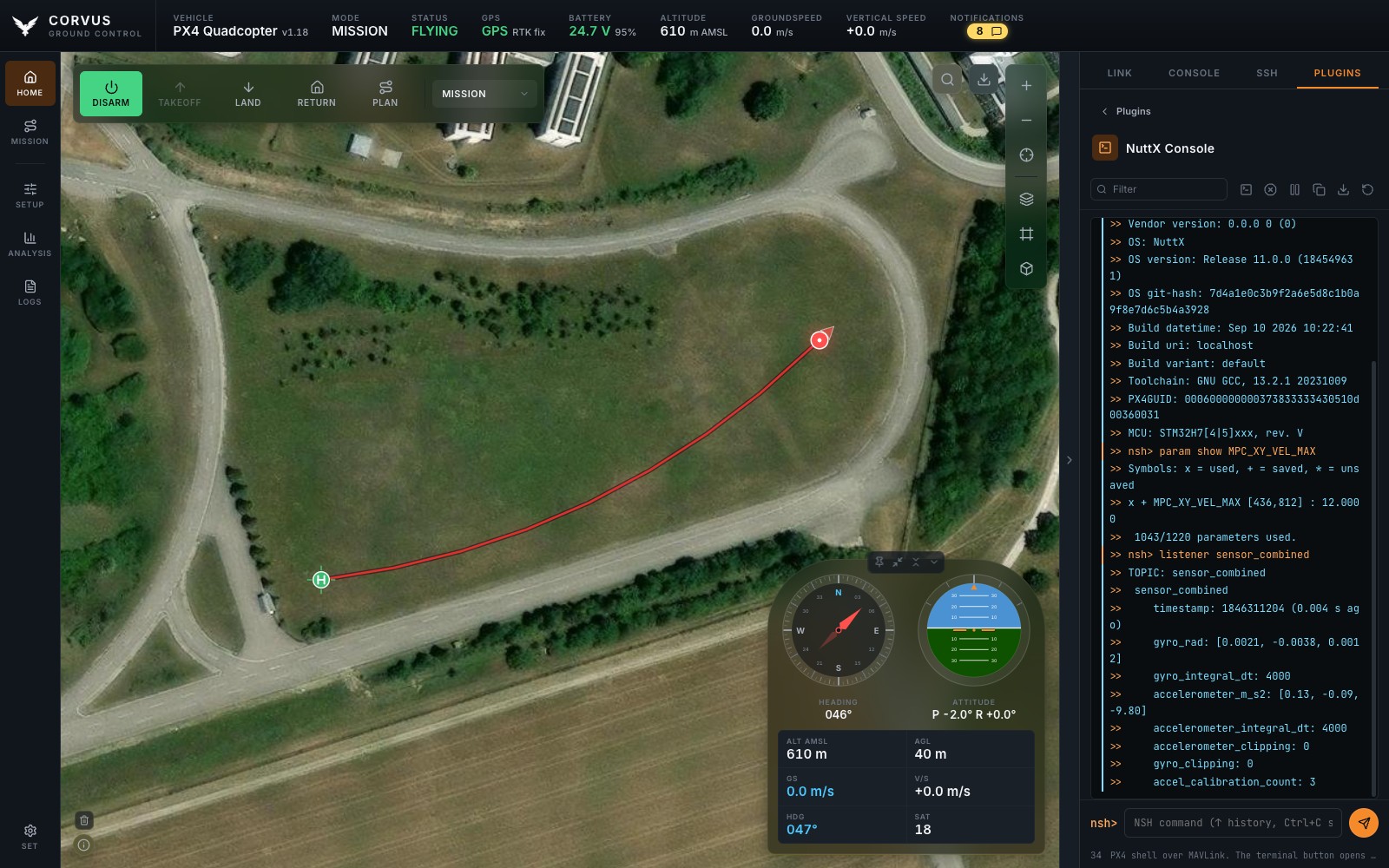
It looks and works like the MAVLink console: the shell's output as lines, your commands in the accent colour, warnings and errors in theirs.
- Type a command and press Enter, or the send button. Up and Down bring back earlier commands, also after a restart. Enter on an empty line asks for a fresh prompt, and ends a running
top. - Ctrl+C in the command line, or the stop button, stops a running program such as
toporlistener. - Filter, pause, copy, save and clear work as in the MAVLink console. Save writes
corvus-nsh_and the time as a.logfile beside the flight logs. - A program that redraws its screen, like
top, replaces its lines instead of adding a screen every second.
The terminal window
The terminal button at the start of the toolbar opens the same shell in a
terminal window, the way the SSH terminals open: in the desktop app a
window of its own, free to go to another
screen, with the pin that keeps it above Corvus; inside the Corvus window
when Settings asks for that, or in a browser. There the prompt is NSH's own
and top redraws in place.
Its title bar follows Corvus title bar in Settings, unless Title bar of the terminal window in the plugin's settings (Settings, Plugins, its gear) says otherwise: System title bar or Corvus title bar for this window alone. An open window changes as soon as the setting does.
- The line is edited here and sent whole when you press Enter, as PX4's own
mavlink_shell.pyand QGroundControl do it, so a slow radio link does not make typing lag. Arrow keys, Home, End and Delete move and edit in the line; Up and Down bring back earlier commands. - Ctrl+C on an empty line stops a running program; on a line you are typing, it drops the line. With text selected, Cmd+C (Ctrl+Shift+C on Windows and Linux) copies it. Ctrl+L clears the screen.
- The circular arrow in the bar ends the shell, and whatever runs in it, and opens a new one.
The console and the window show one shell: what you type in either reaches
it, and what it prints appears in both. It opens when a PX4 autopilot
connects and is closed when the last of the two is closed (a window of its
own included), so a
top left running does not keep the telemetry link busy for
nobody. With nothing connected both say so and the shell opens as soon as
an autopilot is there. On ArduPilot they say Not available on this
autopilot: ArduPilot has no NSH.
The NuttX Console can have a tab of its own, like Schwalby: with Own tab switched on in its settings in Settings, Plugins, it is the NUTTX CONSOLE tab. The MAVLink console's shell commands keep working beside it; whichever sent the last command gets the answer.
Trajectory Viewer
Not included with Corvus. Install it from corvus-trajectory-viewer, see Plugins to install.
Draws a trajectory from a file on the Home map: a route someone planned elsewhere, a survey pattern, or yesterday's flight, as a reference to fly against. It is drawn under the flown track, so while the aircraft flies its own path is always the line on top and you see at a glance where it leaves the reference.
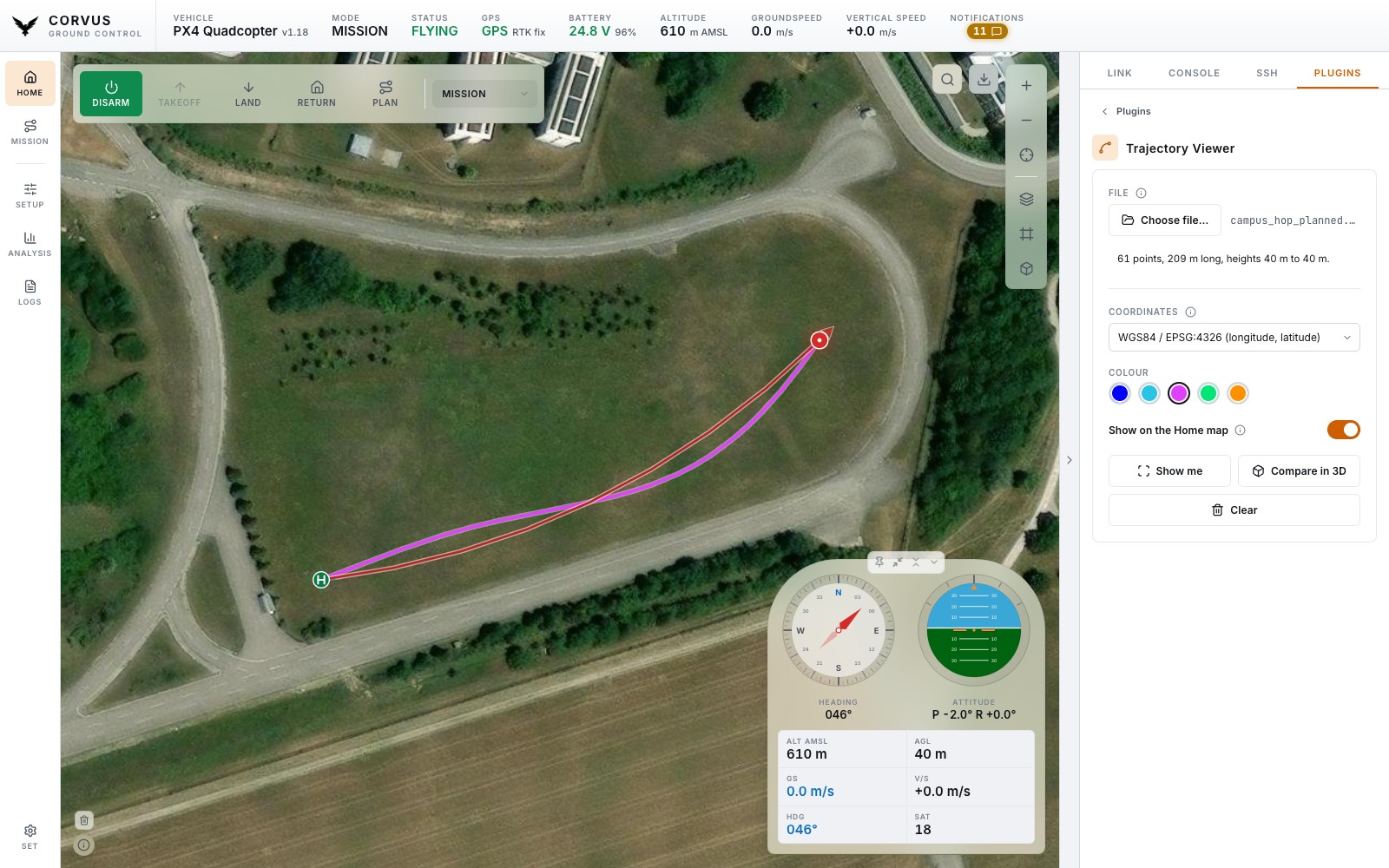
The file
Plain text, one point per line, two or three numbers each: x, y and, if you
have it, z. Commas, semicolons, tabs or spaces separate them; a file with
semicolons or tabs may write decimals with a comma (48,07;11,64).
Empty lines, lines starting with #, // or
%, and a header line such as lon,lat,alt are
passed over. A line that is none of these is counted and named, and the
rest of the file is still read. Above 50 000 points the file is thinned
evenly, keeping the first and last point.
# lon, lat, altitude
11.64115,48.07512,20
11.64230,48.07560,25
11.64371,48.07601,30
Coordinates
The file does not say what its numbers mean, so you choose:
- WGS84 / EPSG:4326
- Degrees, in the order GIS tools write them: x is longitude, y is latitude (GeoJSON, QGIS, most CSV exports).
- UTM / Projected metres
- Metres, x is easting and y is northing, as surveyors and German geodata portals deliver them. Choose the zone below it: 32N is EPSG:32632 and EPSG:25832 (Munich), 33N is EPSG:32633 (the east of Bavaria). 31N, 34N and 35N are there too. EPSG:25832 and EPSG:32632 differ by under a metre.
- GPS
- Degrees, in the order a GPS receiver or a phone shows them: latitude first, then longitude.
- Local frame
- Metres from the aircraft. The aircraft is 0, 0, 0 and x points the way its nose points. Choose whether y points to its right (FRD, as PX4 has it, with z down) or to its left (FLU, as ROS has it, with z up). The frame is taken from the aircraft's position and heading when you press Anchor at the aircraft (or turn the line on without an anchor), and then stays where it is while the aircraft flies, so the line is a fixed reference. Anchor again to move it to where the aircraft is now.
If the numbers cannot be what you chose (a latitude of 150, say), the plugin says so, and names the other order when the numbers would fit it.
On the map
- Colour: cyan, lime, magenta, blue or white. None of them is the red of the flown track or the amber of a planned route.
- Show on the Home map draws or removes the line. It stays on the map when you close the plugin and comes back after a restart, without opening the plugin, until you switch it off.
- Show me brings the Home map forward and frames the whole trajectory.
- Compare in 3D opens a window with the trajectory and the track the aircraft flew, as two lines in one 3D plot you can turn and zoom, with the largest and the average distance between them. Before anything has been flown it shows the trajectory on its own. The flown track is recorded while the aircraft is armed and kept until Corvus closes; Clear flown track in the window empties it. Heights are measured above each track's own start, because a file does not say what its z is measured from.
- Clear takes the line off the map and forgets the file.
The point count, the length and, when the file has z, the height range are shown under the file name. z does not change the line itself: a line on the map lies on the ground, in 3D as well.
Adding your own
Plugins are folders. Corvus reads two places:
| Where | What it is |
|---|---|
~/.corvus/plugins (%USERPROFILE%\.corvus\plugins on Windows) | Yours. Survives updates. |
plugins/ inside the application | The three that ship with Corvus. Replaced by an update. |
Settings, Plugins, Open plugin folder opens the first one in Finder, Explorer or your file manager, and lists what Corvus found. Drop a folder in, press Reload plugins, and the plugin is on the PLUGINS tab. The same button picks up a plugin you changed or deleted, no restart needed. A plugin in your folder with the same id as a shipped one replaces it, so you can patch one without editing inside the app bundle.
Folder layout
~/.corvus/plugins/
  my-plugin/
    plugin.json
    my-plugin.js
    my-plugin.css      (optional)
    lang/              (optional, see Translations below)
    tests/             (optional, see Tests below)
plugin.json
{
  "id": "my-plugin",
  "name": "My Plugin",
  "icon": "puzzle",
  "description": "What it does, one line.",
  "version": "1.0.0",
  "order": 100,
  "scripts": ["my-plugin.js"],
  "styles": ["my-plugin.css"]
}| Key | Meaning | Default |
|---|---|---|
id | The plugin's identity. A plugin in your folder with a shipped plugin's id replaces it. | the folder name |
name | The title on its card. | |
icon | Any Lucide icon name. | |
description | One line under the title. | |
version | Your plugin's own version. | |
order | Where the card sits in the grid, lower first; ties are broken by name. | 100 |
scripts | JavaScript files to load, in order. | <id>.js |
styles | Stylesheets to load. | none |
The script
The script registers itself as it loads. It gets a container to build into
and a small api: live telemetry, the MAVLink console,
notifications, JSON requests to the backend, and its own saved settings.
Corvus.plugins.register("my-plugin", {
  name: "My Plugin",
  icon: "puzzle",
  description: "What it does, one line.",
  init: function (containerEl, api) { /* build your UI */ },
  destroy: function (containerEl) { /* tear it down again */ },
});
More keys are optional. start: function (api) {} runs once
when Corvus starts (and again after Reload plugins),
whether or not the plugin is ever opened, for what has to be there from the
beginning (the Trajectory Viewer puts its saved line back on the map there).
tab: true lets it have a tab of its own, and
options gives it settings; see below. Write the script as one
function that runs itself, as the shipped plugins do, so a reload can run it
a second time.
Plugin tabs
A plugin registered with tab: true gets an Own
tab switch in its settings in
Settings, Plugins. On, the plugin has a
tab in the side panel, captioned with its name and placed before PLUGINS.
Off (the default), it is a card like any other, so a plugin must work in
both. In a tab,
init runs the first time the tab is shown and the view is kept
while you move between tabs; destroy runs when the tab goes
away. PLUGINS stays the last tab.
Plugin settings
A plugin that lists options gets a gear beside its version in
Settings, Plugins. The gear opens a
dialog with one control per option, drawn by Corvus so every plugin's
settings look alike. A change is saved at once.
Corvus.plugins.register("my-plugin", {
  // name, icon, description, init, destroy as above
  options: [
    { key: "units", label: "Units", type: "select", default: "m",
      choices: [{ value: "m", label: "Metres" }, { value: "ft", label: "Feet" }] },
    { key: "labels", label: "Show labels", type: "toggle", default: true,
      hint: "Names beside the points on the map." },
    { key: "radius", label: "Radius (m)", type: "number", default: 50, min: 1, max: 5000 },
    { key: "prefix", label: "Prefix", type: "text", placeholder: "WP" },
  ],
  optionsChanged: function (options, api) { /* follow the new values */ },
});
The types are toggle, select, text
and number. Read the values with
api.getOptions(): each is its saved value or its default.
optionsChanged runs after every change, with all of them.
They are kept in the plugin's own config.json under
_options, apart from what the plugin saves itself, so
api.saveSettings never overwrites them. The key
tab is taken by the Own tab switch.
Drawing on the map
api.map draws lines, areas, text, buttons and icon markers on the Home map. Lines and
areas lie under the flown track; text, buttons and markers sit over it. Keys are the plugin's
own, so two plugins can both use "path", and one key holds one
shape: drawing it again replaces it.
const color = api.map.colors[0].color;   // cyan, lime, magenta, blue, white

// A line through the points.
api.map.drawLine("route", [[11.641, 48.075], [11.643, 48.076]], { color, width: 3, dashed: false });

// An area: the points are its corners, the surface between them is filled.
api.map.drawPolygon("zone", [[11.640, 48.074], [11.645, 48.074], [11.645, 48.077], [11.640, 48.077]], {
  color, fillOpacity: 0.25, width: 2,   // width 0: no outline
});

// A circle of 120 m around a point, as an area.
api.map.drawCircle("keep-out", [11.642, 48.0755], 120, { color: api.map.colors[2].color });

// Text at a point, with or without a dot.
api.map.drawText("home-label", [11.642, 48.0755], "Landing zone", { color, size: 13, dot: true });

// A button at a point. The handler is the plugin's; a click never reaches the map.
api.map.drawButton("go", [11.642, 48.0755], "Start survey", { color, title: "Fly the survey", onClick() { startSurvey(); } });

// An icon marker: a round badge with a symbol in it and a label below. It can be clicked and
// dragged; a dragged marker keeps its new place. The icon is a name from api.map.icons(), or
// an array of your own SVG path strings on a 24 by 24 grid.
api.map.drawMarker("tree-1", [11.642, 48.0755], {
  icon: "tree",
  label: "Tree 1", color, size: 28, selected: false, draggable: true,
  onClick() { select("tree-1"); },
  onDragEnd(point) { save("tree-1", point); },   // point is [lng, lat]
});

// Wait for one click on the map. Esc or a right click calls onCancel.
const cancel = api.map.pickPoint((point) => place(point), { onCancel() { stopPlacing(); } });

const flown = api.map.track();   // [[lng, lat], ...] flown so far

api.map.icons();            // [{name: "gate", label: "Gate"}, {name: "tree", ...}, ...]
api.map.iconPaths("tree");  // the symbol's SVG paths, to draw the same glyph in your own view

api.map.setVisible("zone", false);
api.map.fit([[11.641, 48.075], [11.643, 48.076]]);   // bring Home forward and frame it
api.map.remove("route");
A shape outlives the plugin's view: closing the card does not remove it. Remove it when the operator asks. Text and button labels are plain text, never markup, and at most 200 characters.
The full api is documented at the top of
src/js/plugins.js, and the manifest in
corvus/plugin_registry.py. The shipped plugins are complete
worked examples that go through exactly this path. Copy one and start from
there:
plugins/ssh-launcher: a form, saved settings and a backend call.plugins/schwalby: the same, with a control and a stylesheet of its own.plugins/vibration: a live chart on the telemetry stream.plugins/map-entities: placing things on the map by clicking, markers that can be dragged, and watching the aircraft's track against them.
The two plugins to install are worked examples too:
the Trajectory Viewer for reading a file, a start hook and
a line on the map, the NuttX Console for a tab of its own
and a stream from /api/events.
Translations
A plugin brings its own translations the way it brings its own tests: one
file per language in a lang folder inside its folder, named after
the language code (lang/de.json, lang/fr.json). The
format is the one the interface languages use, with the English text as the
key and meta left out, because the language itself is named by
the main file:
{
  "strings": {
    "Live vibration": "Live-Vibration",
    "Settings of {name}": "Einstellungen von {name}"
  }
}
When a language is loaded, Corvus merges the files of every plugin into it. If
the main language file and a plugin both translate the same English text, the
main file wins, so a plugin cannot change what the application itself says. A
plugin file that cannot be read costs that plugin its translation and nothing
else. In a checkout, python3 tools/i18n.py check reads the plugin
files too.
Tests
A plugin keeps its own tests in a tests folder inside its
folder. In a Corvus checkout, a plugin in plugins/ is tested
with the rest: node tools/frontend_tests.js runs every
plugins/<id>/tests/*.js and pytest every
plugins/<id>/tests/test_*.py. Name Python test files
after the plugin (test_<id>_*.py) so they cannot clash
with another plugin's. A plugin that is not installed has no tests to run,
so leaving one out never fails the suite, and a plugin's tests stay out of
the application when it is built.
A test finds Corvus's own scripts through CORVUS_ROOT, and
three folders up when that is not set:
const path = require("node:path");
const CORVUS = process.env.CORVUS_ROOT
  ? path.resolve(process.env.CORVUS_ROOT)
  : path.join(__dirname, "..", "..", "..");
require(path.join(CORVUS, "src", "js", "ui.js"));
require(path.join(CORVUS, "src", "js", "plugins.js"));
require("../my-plugin.js");
A plugin's settings are kept in its own file,
~/.corvus/plugins/<id>/config.json, not in the main
config. A plugin that fails to load costs itself and nothing else: the rest
of the app, and the other plugins, come up regardless.
A plugin is ordinary JavaScript running in the app's own page, and the launchers run whatever command you give them as the account you point them at. Read a plugin before you drop it in, exactly as you would a script you were about to run yourself.
Taking a plugin to another station
Switch on the plugin's Files in Settings, Export and import, Export settings. The file then carries the plugin's folder (scripts, styles, images, up to 4 MB) as well as its settings, and an import installs it into the plugin folder there, replacing a copy with the same id and keeping that copy's settings unless the file's are imported too. Install plugin files only from a settings file you trust.