Fly
Map, HUD and flight controls
The map is the centre of Corvus. Everything you need while the aircraft is in the air sits on it or floats over it, and the side panel can be collapsed so the whole window becomes the operational picture.
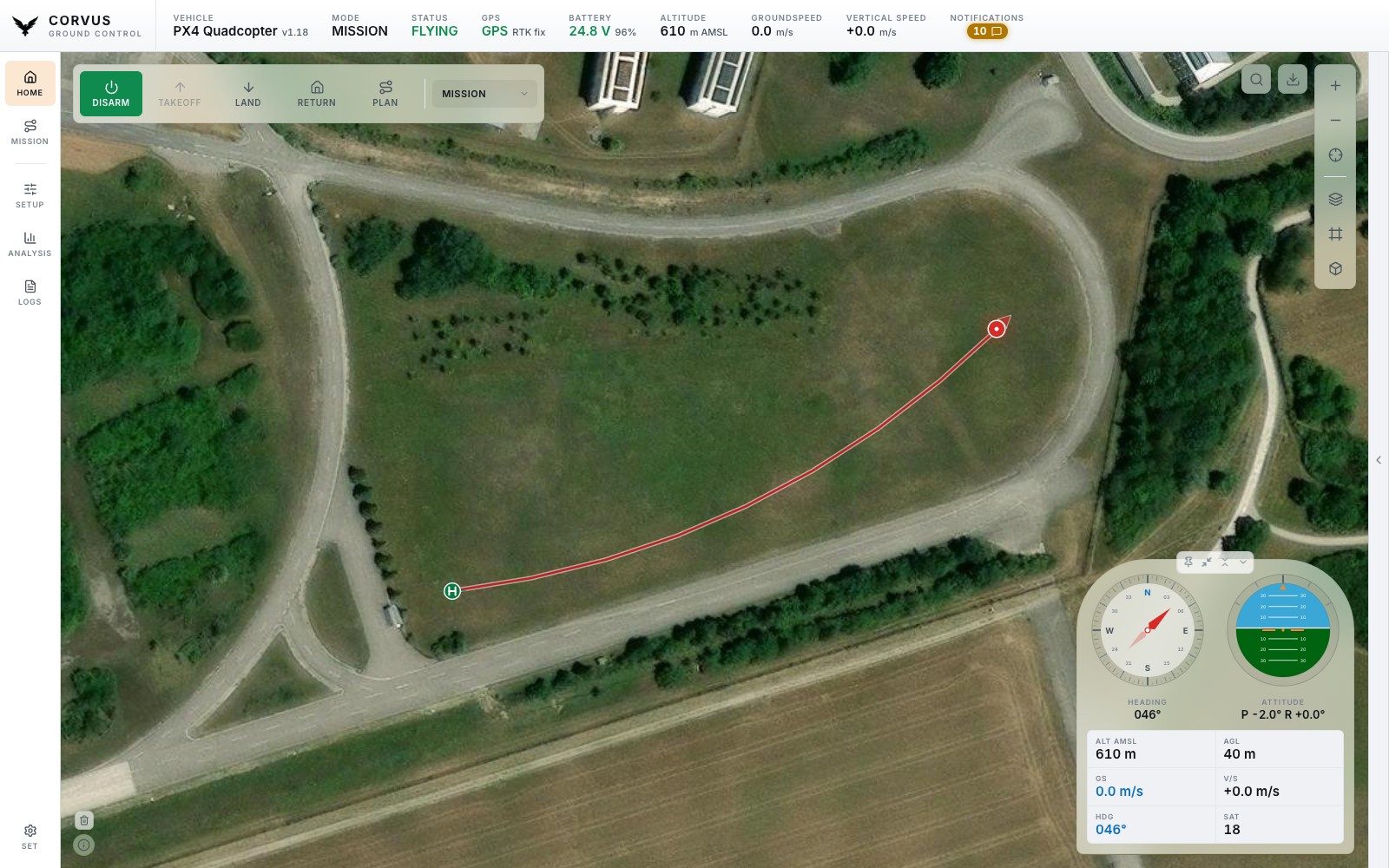
The map
Your aircraft is drawn with a heading cone and a white ring around it, so it stays visible over any imagery. The home point is a landing pad mark on the exact coordinate. The map service and layer (satellite, streets, terrain and so on) are chosen with the layer control on the map's right edge; see Map service for the services and their keys.
The flown track
The path the aircraft has flown trails behind it in red. It stays until you clear it with the small button in the map's corner: a link drop, a vehicle reboot and a restart of Corvus all keep it. When the aircraft lands and takes off again, the earlier flights turn a lighter red, so the flight in progress stands out. Three switches under Settings, Flown track change this:
- Earlier flights in their own colour, on by default.
- Rainbow colours for earlier flights, off by default. Each earlier flight then gets a colour of its own, still faded, so flights over the same ground can be told apart. The flight in progress keeps the aircraft's colour. It needs the switch above to be on.
- Clear the track whenever Corvus starts or the autopilot reboots, off by default.
Several vehicles
Corvus flies one vehicle at a time and shows every other one it hears. Click the Vehicle block at the left of the status bar to open the vehicle list. Each entry has the vehicle's name and colour, its system ID and link, its mode, battery and height, a Take control button and a bin to remove it.
One link is one vehicle. A link flies the first autopilot it hears and nothing else, and a second vehicle needs a radio and a link of its own; see One radio per vehicle. A frame that radio noise turns into something that looks like a heartbeat from a random system ID is thrown away, so it never shows up as a vehicle.
The vehicle in control is the one the whole interface is about: the status bar, the HUD, the flight bar, the joystick, the mission planner and every setup page. The others are drawn on the map in their own colour, with their name under the marker and a track of their own. Click one on the map to open the list at that vehicle. A vehicle that has not been heard for 5 s is drawn faded and marked lost.
Names and colours
Click the name at the top of a vehicle's entry and type a new one. An empty field goes back to the default, "Vehicle" and the system ID. Click the coloured circle to choose the colour of its marker and track: the theme's own red or one of the suggested colours. A vehicle alone on the map keeps the theme's red. When a second one appears, the one in control keeps it and the others get a colour each. Names and colours are saved and come back the next time that vehicle connects.
Taking control of another vehicle
Press Take control. If the vehicle in control is armed, Corvus asks first, because that vehicle keeps flying in its current mode and is not sent anything to stop it. Give it a mode that flies on its own (Hold, Mission or Return) before you switch. From then on commands, the joystick and every page go to the new vehicle. The switch is immediate, because every vehicle has its own link.
The flown track belongs to its vehicle. Switching hands the old vehicle's track over to it, drawn in its colour, and picks up the new vehicle's track where it left off.
One radio per vehicle
The usual field setup: every vehicle has a telemetry radio of its own, and
every radio is a link of its own in Corvus. The main link is the one on the
LINK tab; every further radio is opened under
Links, in the vehicle list or in Settings,
Vehicles. Both list the serial ports no link uses yet, each with an
Open button, and a field for any other connection, such as
serial:/dev/ttyUSB1:57600 or udpin:0.0.0.0:14560.
A radio plugged in while Corvus is running is offered on the LINK tab and in
the list with Open as another vehicle. Extra links are
saved and opened again at the next start, and the cross beside one closes
it. Every vehicle on a link of its own may keep system ID 1.
Each link is a complete connection with its own heartbeat to the vehicle, so a vehicle you are not controlling never sees its ground station go quiet. Switching between vehicles on separate links is immediate. Auto-connect only ever drives the main link, and never takes a radio another link holds.
On Linux a radio can come back under another /dev/ttyUSB
number after it is unplugged. For an extra link, use its stable name from
/dev/serial/by-id/ instead; macOS and Windows keep the same name
for the same adapter.
Another autopilot on the same link
A router, a mesh radio or PX4's multi-vehicle simulation can carry several vehicles down one link. Corvus flies the first autopilot it hears there and ignores the rest; the console says once which system ID it ignored. To fly each of them, give each one a link of its own (for the simulation, a UDP port each).
Removing a vehicle
The bin in a vehicle's entry removes it. Corvus asks first, then closes the vehicle's link, and the vehicle leaves the list and the map, track included. A vehicle on the main link is disconnected and stays disconnected until you connect again on the LINK tab. A vehicle on an extra link has that link closed; open the link again to bring it back. Its name and colour are forgotten, because the next radio opened in its place may carry another aircraft. Removing an armed vehicle that is still heard needs a second confirmation: it keeps flying in its current mode, and the station no longer sees it.
Warnings from the other vehicles
The vehicles you are not controlling still report to the notification board: every warning or error they send (low battery, a failsafe, a refused preflight check) appears there and as a toast, with the vehicle's name in front. A vehicle that stops sending heartbeats for 5 s is reported lost, and heard again when it comes back. The same line from the same vehicle is told once in 30 s.
What follows the vehicle in control
The LINK tab always shows the link of the vehicle in control. Downloading on-board logs, flashing firmware over USB and programming a SiK radio work with the vehicle on the main link only; with a vehicle on another link in control they say so. RTK corrections go to every link. The Remote ID identity from Settings is sent on the main link only, because it belongs to one aircraft.
Click the map
Click anywhere on the map to open a small menu for that spot:
- Fly to this point
-
Available once the aircraft is connected and armed; the menu says what is missing otherwise, and shows the height it will use (the PLAN altitude, see below).
For an aircraft that is already in the air, Corvus sends
MAV_CMD_DO_REPOSITIONrather than a mission. A PX4 aircraft that is holding stays in Hold and flies there, with no switch into Mission mode and back, and the mission stored on the aircraft is left alone. ArduPilot does the same in GUIDED. An aircraft that is armed but still on the ground gets a short mission with a takeoff first. - Set home here
- Moves the home point, which is where a return to launch goes. It needs a connection but not a disarmed aircraft, because redirecting the return in flight is exactly when it is needed.
Measuring a distance
The ruler button at the bottom of the map's right-hand bar measures the distance between two points. Press it, click the start, then click the end. While you move the pointer after the first click, the line follows it. The label on the line shows the distance in your display units and the heading from the first point to the second.
The distance is the straight line over the ground, not along the terrain, so on a steep slope the way you would walk is longer. A further click starts a new measurement. Escape or a right click clears the line, and pressing either again turns the tool off, as does pressing the ruler button. While the tool is on, a click on the map does not open the menu above.
The button can be taken off the bar under Settings, Appearance, Map tools. It is on the Home map only, not on the Mission planner's.
The flight bar
Across the top of the map: ARM, TAKEOFF, LAND, RETURN and PLAN, with the flight mode picker beside them.
- ARM / DISARM
- Arms or disarms. Whether arming is allowed is the autopilot's decision; if it refuses, its reason is shown.
- TAKEOFF
- Opens a small panel with an altitude slider (1 to 120 m) and a box beside it. The slider is logarithmic, so the low heights get most of the track and the arrow keys step by one metre (5 m above 50 m). The box is ready for typing as soon as the panel opens: a number typed there is the altitude at once, the slider follows, and a value outside the range is set to the nearest limit. Enter in the box confirms the takeoff, the same as the button; if the box is empty or holds a value outside the range, Enter only corrects it, and the next Enter takes off. The box uses the length unit chosen in Settings. Confirming arms the aircraft and takes off, in the order the autopilot needs: on PX4 the command first, then arming; on ArduPilot GUIDED, arming, then the command. See PX4 and ArduPilot.
- LAND and RETURN
- Land where the aircraft is, or return to launch. RETURN uses the heights and behaviour set on the Safety page.
- PLAN
- A quick way to fly a few points without the full planner. Press it, click points on the map, set the height (1 to 50 m above home) and press FLY. For anything longer, use the Mission planner.
- Flight mode
- Lists the modes the connected firmware actually has, in the stack's own words ("Return", not "RTL"), and only once the firmware version is known. PX4 sub modes such as Orbit and Position Slow are shown as themselves.
Rover and boat
Corvus is tuned for aircraft, and that is what it assumes until the vehicle says otherwise. When a rover or a boat connects, the bar and the map menu stop talking about flying:
- TAKEOFF and LAND are gone, along with their altitude panel. The command layer refuses both as well, so a console command or another client cannot send them either.
- The map menu reads Drive to this point and shows no height. PLAN becomes DRIVE TO POINTS, with no altitude slider, and the button reads DRIVE.
- An armed ArduPilot rover goes to a single point with
MAV_CMD_DO_REPOSITIONin GUIDED. On PX4, and for more than one point, Corvus uploads a short mission with no takeoff item in front of it. - ARM, RETURN and the mode picker stay, and the picker lists the rover's own modes (Manual, Hold, Auto, Guided and so on).
The setup pages already follow the vehicle: Safety, Tuning, Battery and the other pages show the parameters the rover firmware has. In the Mission planner a rover has no takeoff on its start, no LAND tool and no altitude profile, and an upload that carries a takeoff or a landing is refused with the reason.
Every command shows its progress on the button and reports the autopilot's answer. A rejected command says why, in a notification.
By default the bar keeps its full size and narrows only when the row really does not fit. Settings, Flight bar makes it step down earlier, as soon as it would cover more than half the map: first to the width of each word, then to icons alone.
What needs a position, and what does not
Corvus asks the aircraft for its home position as soon as it connects, and needs home (or a global position) only where an altitude has to be converted or set:
| Action | Without a position reference |
|---|---|
| Takeoff | Waits briefly, then sends the takeoff anyway with the altitude left unspecified, so the vehicle uses its own configured takeoff altitude. You get a warning, not a refusal. |
| Fly to points | Unaffected. Mission items carry your height above home directly, in the relative altitude frame, so nothing has to be converted. A single point for an aircraft already in the air is sent as a reposition, which on PX4 needs home to convert the height; without it Corvus uses the mission instead. |
| Set home | Waits briefly, then refuses. This altitude is not being converted: it is the altitude home will have, and home altitude is what a return descends to. Guessing it would move the landing point up or down as a side effect of moving it sideways. |
Whether the aircraft can actually take off stays the autopilot's decision; if it cannot, its own refusal reaches you with a reason.
The flight HUD
The instrument panel (compass, attitude indicator, altitude, speeds, heading and satellite count) floats over the map in a window you control:
- Grab it anywhere that is not a button to move it.
- Pin it so a stray gesture cannot move it.
- Shrink it to a compact size, or collapse it away.
- Double-click it to send it back to its corner.
- Take it off the map entirely with Settings, Flight HUD, Show the flight HUD.
Where you put it stays put: across restarts, across a trip to Setup and back, and when the side workspace slides open, a window parked at the right edge moves in with it rather than disappearing behind it. The on-screen control pads and the checklist window behave the same way.
The compass is north up by default. Settings, Compass, Lock compass nose up turns the rose instead, so the top of the dial is always where the aircraft is heading.
Notifications and toasts
Messages from the autopilot and from Corvus collect in the notification centre. The count on its badge is coloured by the worst thing unread:
| Badge | Meaning |
|---|---|
| Green | Nothing unread. |
| Blue | Only informational lines. A normal flight produces a steady trickle of these. |
| Amber | At least one real warning. |
| Red | At least one critical message. |
The badge used to turn amber for anything unread, which taught operators to ignore the one colour that has to keep working. Now amber means a warning.
A new warning or critical also appears as a toast in the top right corner: once per message within a short window, and never by opening the notification centre over the map. Click a toast to open the centre. Informational lines ("Takeoff detected") only go to the centre, and PX4's log file announcements stay in the console.
At most three toasts stand at once. A new one always shows, and the one that makes room is the oldest that is not critical. Toasts leave on their own: an informational one after about 5 seconds, a warning after 6, a critical after 20. The centre keeps every one of them, and the badge stays red until you have looked.
A kill switch and a disarm get toasts of their own, titled Kill switch and Disarmed, with the reason the vehicle gave, such as "Disarmed by the kill switch" or "Disarmed by auto disarm after landing". An engaged kill switch is critical, and its toast goes when the switch is released. When the vehicle disarms without naming a reason (ArduPilot never does), a plain Disarmed toast says so, and a reason arriving a moment later replaces it.
When the vehicle says a problem is over, its line is marked resolved: it turns grey but keeps its symbol, no longer counts on the badge, and leaves the centre a minute later. That happens to the kill switch line when the switch is released, and to every failed preflight check ("Preflight Fail:" on PX4, "PreArm:" on ArduPilot) once the vehicle is ready to fly or arms. A warning the vehicle has not resolved stays until you dismiss it. Informational lines leave after a minute.
When the vehicle becomes ready to fly (from NOT READY, from a released kill switch, or on a fresh link), a short Ready to fly toast says so. It is not shown after a landing, where the Disarmed toast already says what happened.
Manual controls on screen
Four optional input methods can be switched on under Settings, Controls. All four are off by default.
- Virtual joystick
- Two sticks on screen: throttle and yaw on the left, pitch and roll on the right.
- USB gamepad
- A game controller plugged in by USB, with the same layout as the virtual joystick. Press any button on it once so the app can see it.
- Arrow keys
- Your keyboard's arrow keys fly pitch and roll.
- WASD
- W and S for thrust, A and D for yaw.
The two key pads share one window. A key strength slider (25 to 100 %, 50 % by default) sets how far a held key pushes the stick, the same for arrows and WASD. Hold Shift to fly at twice that strength for as long as it is down: the slider is the cruise, Shift is the dash. The on-screen sticks are not affected by either; they always reach their own stops.
Arming from the gamepad. With the vehicle disarmed and the link up, push both sticks inward, toward each other, and hold them there. A bar under the gamepad fills, and after one second Corvus asks the vehicle to arm. While you hold the gesture on the ground the gamepad sends centred sticks, and after the arm it keeps sending centred sticks until you let go of both. Once armed, Corvus asks for the stack's position mode (Position on PX4, PosHold on an ArduPilot copter) if the vehicle is in a mode that ignores the sticks. There is no disarm gesture: land and disarm with the ARM button, or let the vehicle disarm itself after landing.
Apart from the gamepad's arm gesture, these are input sources only. They never arm, change mode or override a failsafe. On ArduPilot they only work when the aircraft accepts stick input from Corvus's system ID; see One setting on ArduPilot.
Preflight checklist
An optional window on the Home map with your own checklist, ticked off item by item before each flight. Switch it on with the Preflight checklist card on Safety & Sensors, where Edit checklists opens the editor.
- Write as many lists as you like, each with a name, items and section headings, and pick one in the window. A station that has not written one gets a short standard list: propellers and battery, weather and airspace, GPS and home, failsafe and return altitude, and the area clear of people.
- Ticks belong to the flight, not to the setup. They are kept on this computer only. The lists themselves are part of the station's settings, so they survive a reinstall and travel with a settings export.
- Reordering keeps the ticks. An item is remembered by its text, so rewording one clears only that one.
- Arming with open items is allowed. Corvus shows a warning, once, and nothing more. The checklist is your memory aid; a ground station that refused to arm over a list it cannot verify would be blocking on the wrong thing.
The window moves, folds and returns to its corner on a double-click, like the HUD. Its × hides it; the card on Safety & Sensors brings it back without switching the feature off.